
Reports to the Legislature: Reference Sheet
Before you start
- Save the report as one PDF, up to 500 MB. The first page must be the transmittal letter, followed by the report.
- The PDF must not be password protected; the site will reject it.
- The PDF must be accessible (Section 508): tagged, titled, with a language, image alt text and searchable text. Problems get a warning now; after the accessibility mandate takes effect, failing PDFs are rejected.
- Have the date printed on the transmittal letter and the resolution, session law, HRS section or other authority the report is submitted under.
- You do not need to deliver paper copies to the Senate President or House Speaker. Both offices see submissions on this site and review them before the report is numbered and filed (usually as a “DC”).
Signing in
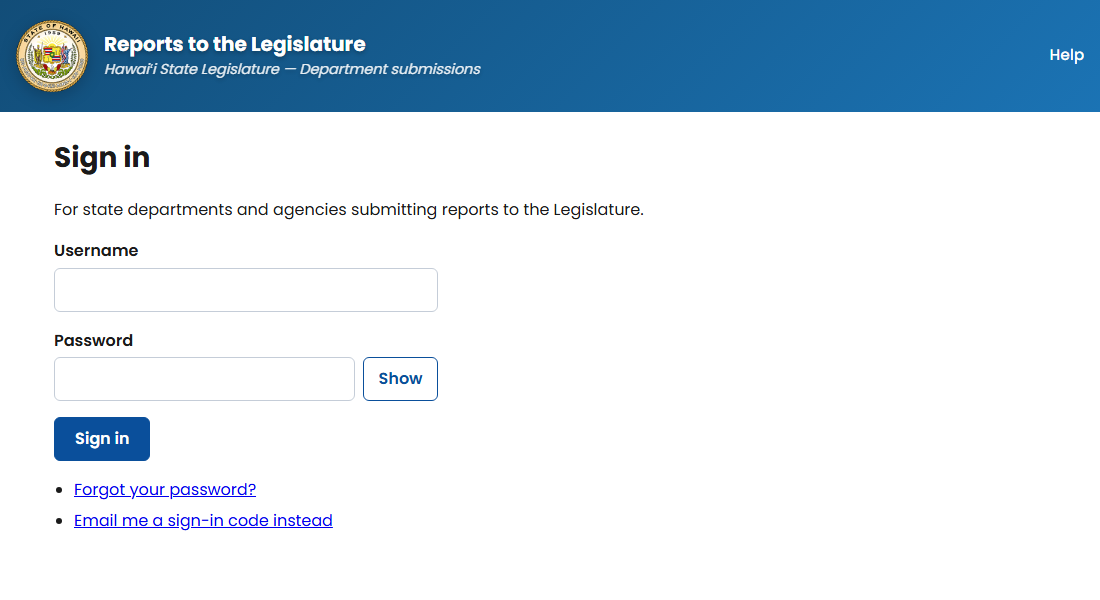
With your password
Enter your department's username and password, then select Sign in. Passwords are case-sensitive. After 10 wrong tries the account locks for 15 minutes.
With an emailed code
Select Email me a sign-in code instead, enter your username, and type the 6-digit code from the email. Codes expire after 10 minutes and work once.
Forgot your password?
Select Forgot your password? and enter your username. We email a link to the address on your account; it expires after 30 minutes and works once.
No email on your account?
Use Ask the Clerks to reset your password (under Forgot your password). The Clerks will call you back, confirm who you are, and give you a temporary password. You'll choose your own when you next sign in.
Never share a password by email. The Clerks will never email you one.
Finding your way around
Submit a report is the form (pages 2–4). My submissions lists your reports and lets you remove one (page 5). Help has this sheet and the Clerks' numbers. My account (page 6), Change password and Sign out are next to your name. On a phone, select Menu at the top right to see these links.
Submit a report (1 of 2): details
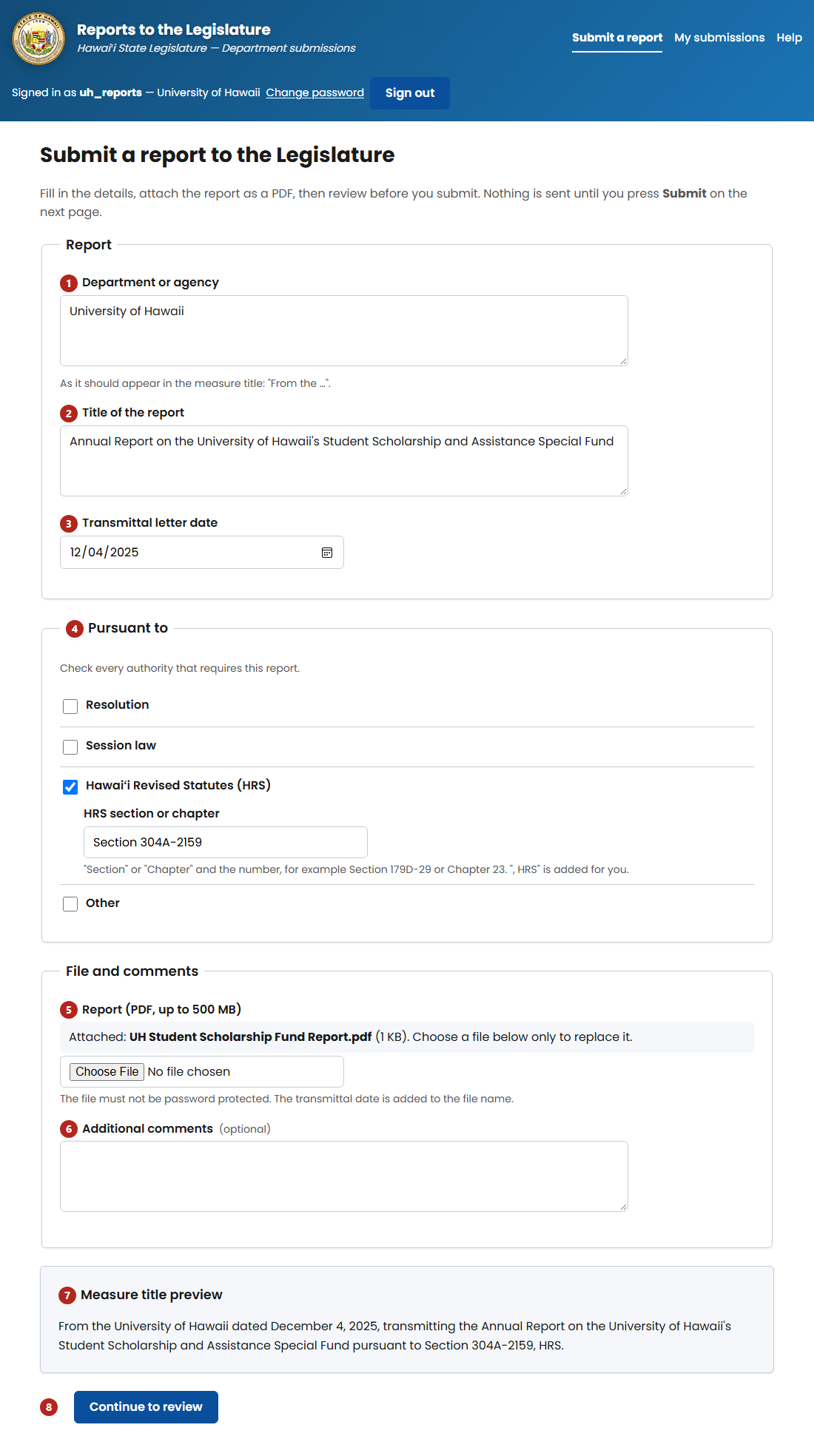
- 1Department or agency is filled in from your account. Change it if needed; it appears in the measure title as “From the …”.
- 2Title of the report. Type the title only. Don't add the law or HRS section here; that goes in step 4.
- 3Transmittal letter date. Pick the date printed on the transmittal letter, not today's date.
- 4Pursuant to. Check every box that applies; its fields appear when you check it. Format the text like these examples:
- Resolution: HR10 or SCR44 SD1, plus the 4-digit SLH year
- Session law: Act 100 or Act 56 Section 103, plus the 4-digit SLH year
- HRS: Section 179D-29 or Chapter 23. Include the word “Section” or “Chapter”; “, HRS” is added for you.
- Other (only if none of the above apply): Honolulu City Council Resolution 15-79 CD1 or Article VII, Section 10, of the State Constitution
Submit a report (2 of 2): file
- 5Report. Choose the PDF (transmittal letter first). Large files show an upload progress bar; keep the page open until it finishes.
- 6Additional comments (optional) go to the Clerks with the report.
- 7Measure title preview updates as you type. Read it: this sentence becomes the measure's title.
- 8Select Continue to review. If something is missing, the page lists every problem at the top. Your file stays attached, so you don't need to choose it again.
Avoid these common errors
- Leaving out “Section” or “Chapter” in the HRS box
- Using the upload date instead of the date on the transmittal letter
- Putting the session law or HRS section in the report title (it then repeats in the measure title)
- Forgetting the transmittal (cover) letter as the first page of the PDF
Review and submit
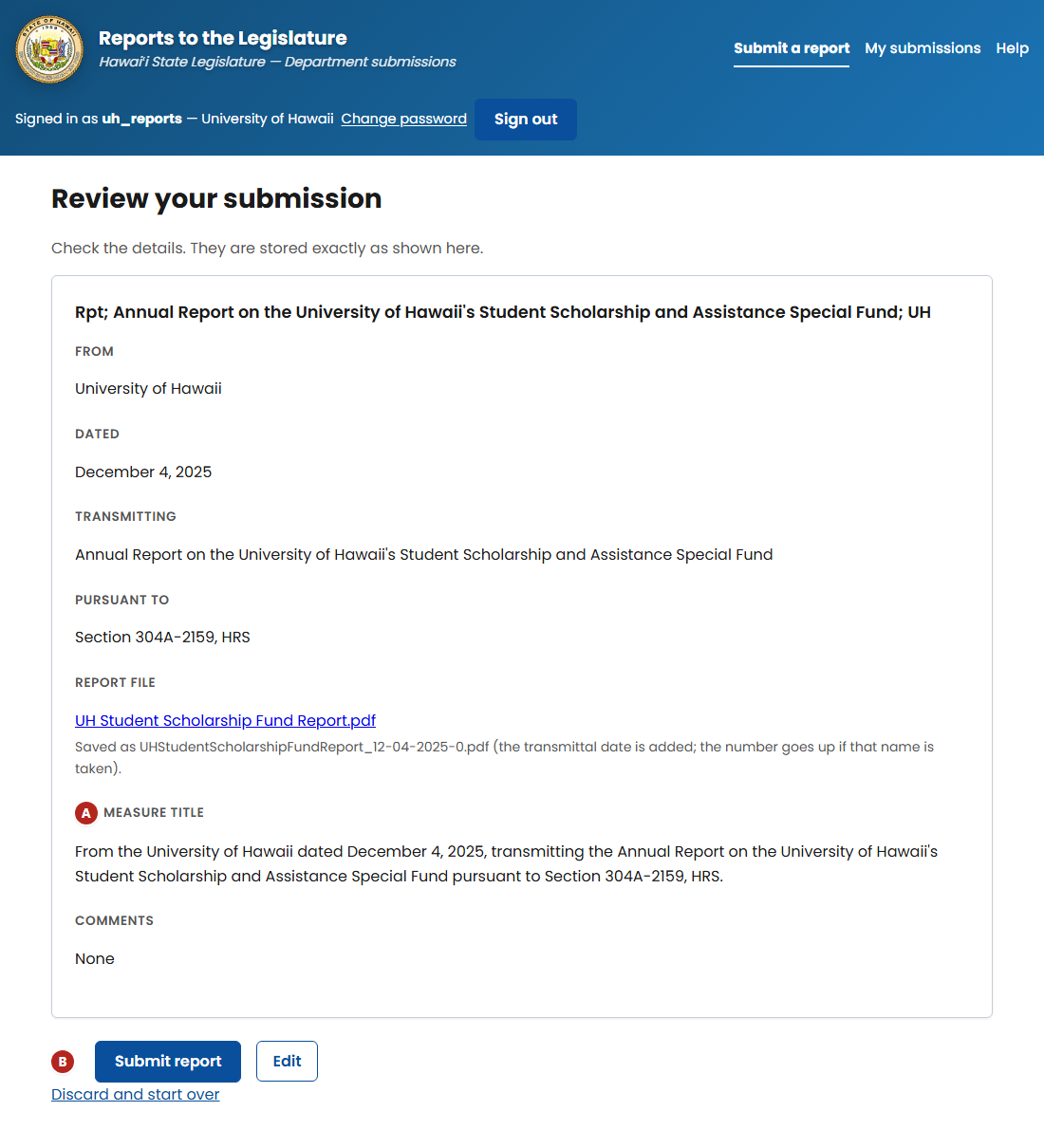
- ACheck every line, especially the measure title. Select Edit to fix anything; your entries and file are kept. Select the file name to open the PDF you attached.
- BSelect Submit report once. If the site warns that a report with the same title and date was already submitted, check My submissions before continuing.
After you submit
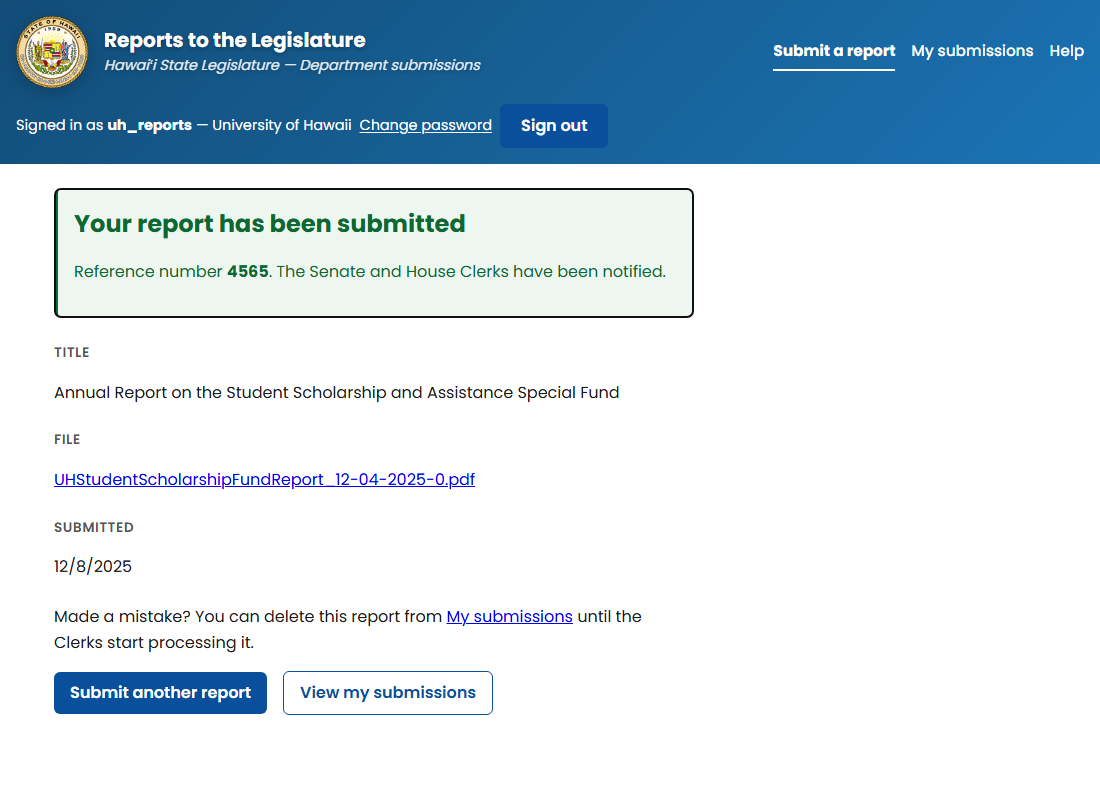
The confirmation shows your reference number. Keep it if you need to contact the Clerks about the report.
The Senate and House Clerks are notified automatically, and the file is published on the Capitol website. The page also has buttons to Submit another report or View my submissions.
My submissions
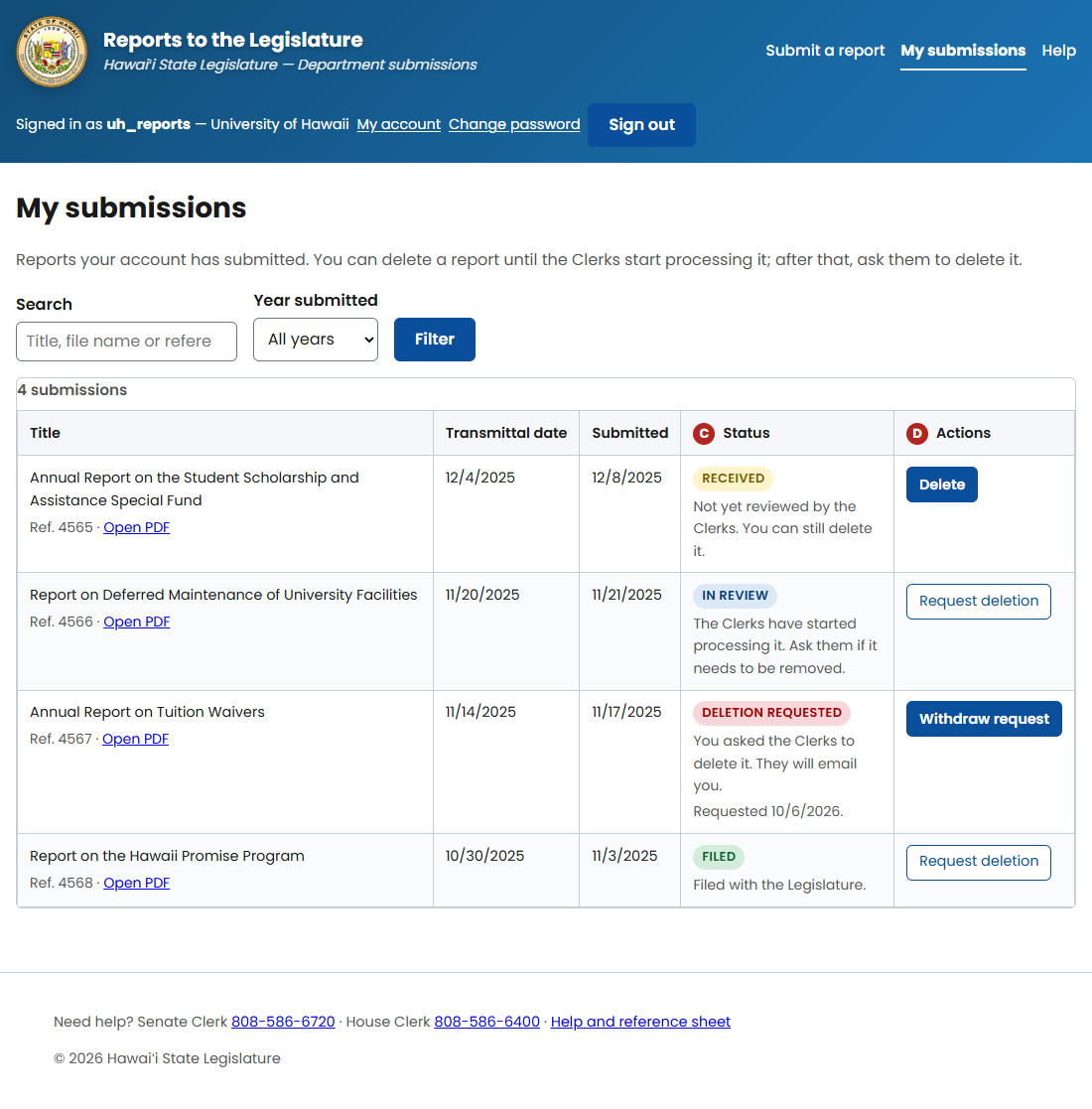
Lists your reports, newest first. Search by title, file name or reference number, filter by year, and use Open PDF to see the file.
- CStatus. Received: the Clerks haven't started on it. In review: they have. Deletion requested: you asked them to remove it. Filed: numbered and filed with the Legislature.
- DActions. While a report is Received you can Delete it yourself; its file is removed from the Capitol website. After that, use Request deletion and give a reason; the Clerks review it and email you. You can Withdraw request while it's pending.
Submitted the wrong file? If the status is still Received, delete it and submit again. Otherwise use Request deletion.
Need help?
Senate Clerk: 808-586-6720 · House Clerk: 808-586-6400
My account
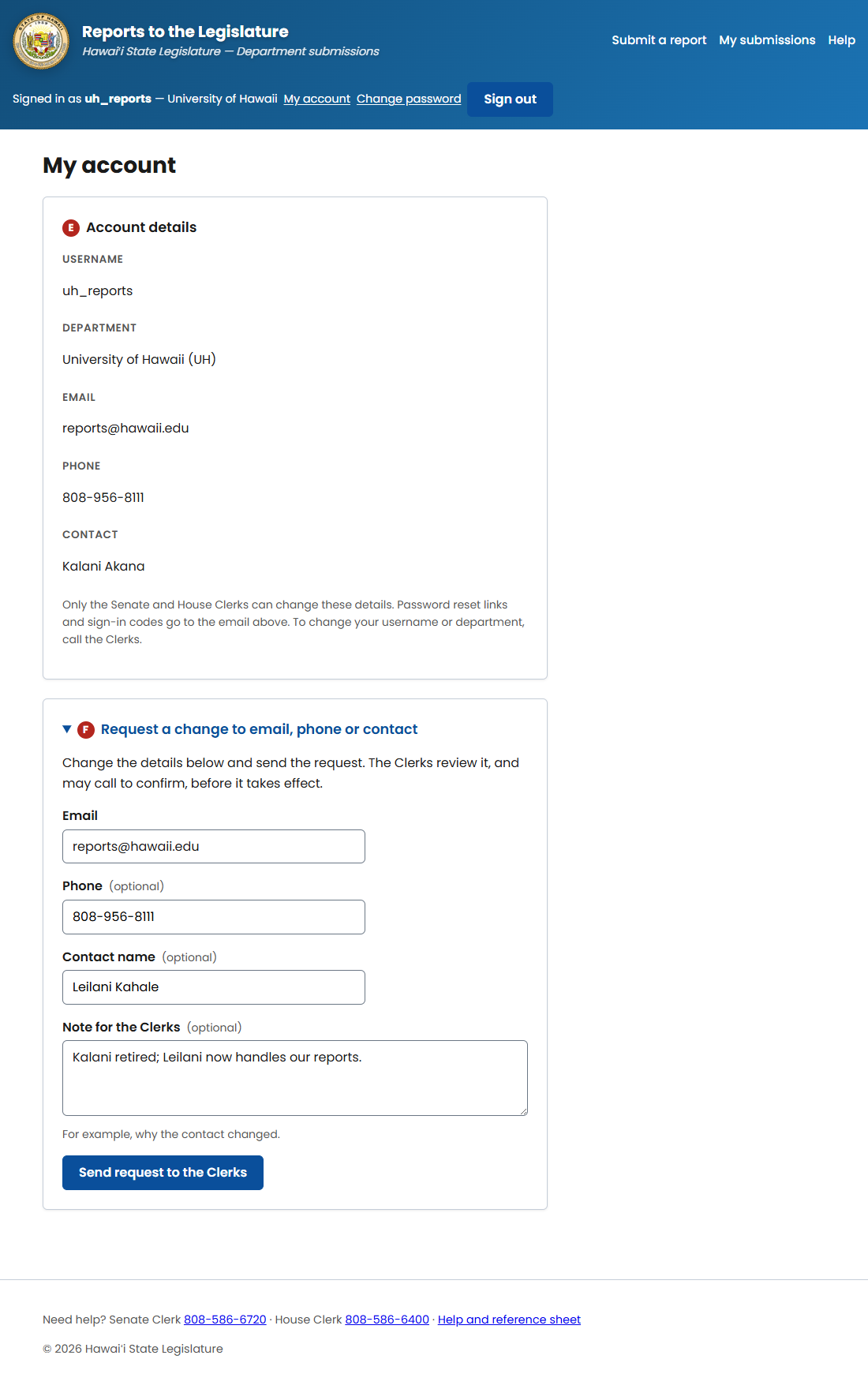
- EAccount details. Your username, department, email, phone and contact name. Password reset links and sign-in codes go to this email, so keep it current. Only the Clerks can change these details. To change your username or department, call them (page 5).
- FRequest a change. Open it, change the email, phone or contact name, add a note if it helps (for example, why the contact changed), and select Send request to the Clerks. The Clerks may call to confirm, and may correct the details, before they apply it. Your account doesn't change until they do.
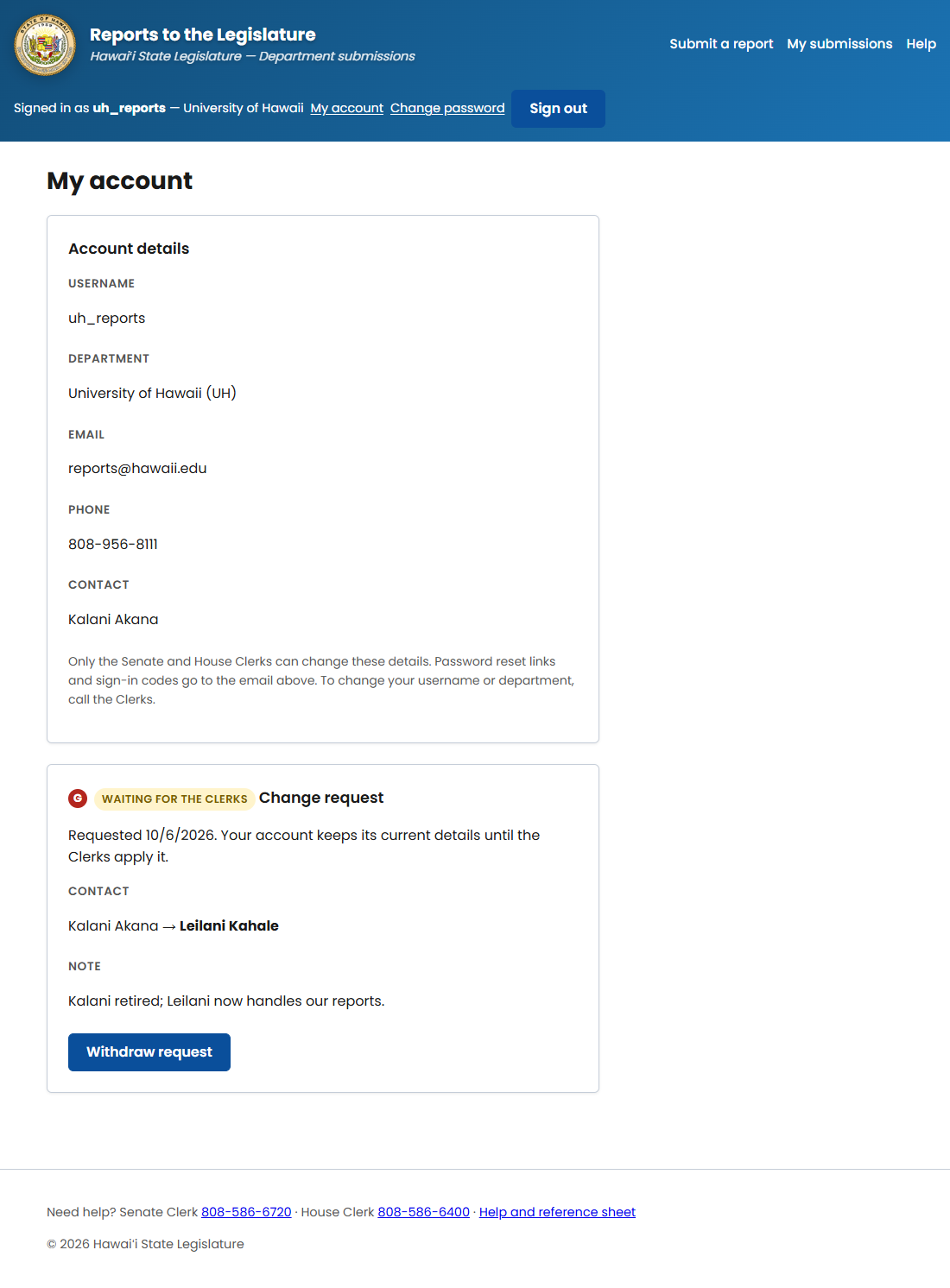
- GWaiting for the Clerks. The page shows each detail's current and requested value. You can have one request at a time; select Withdraw request to cancel it, for example to fix a typo, then send a new one. When the Clerks finish, the page says whether your request was applied or declined.